Feature Tutorial
Welcome
Welcome to Geospatial for Java - this workbook is aimed at Java developers who are new to geospatial and would like to get started.
You should have completed one of the GeoTools’ Quickstarts prior to running through this workbook. We need to be sure that you have an environment to work in with GeoTools jars and all their dependencies. For those using just maven we will start off each section with the dependencies required.
This workbook features a new “code first” approach. We have made every effort to make these examples both visual and code centered. We have included some background materials explaining the concepts and ideas in case you are interested.
CSV2SHP
We are trying a new track for introducing features this year; rather than reading through a shapefile and ripping things apart in an artificial exercise, we are going to start by building a shapefile from scratch so you get to see every last thing that goes into creating features.
The tutorial covers the following:
Creating a
FeatureType,FeatureCollectionandFeaturesUsing a
GeometryFactoryto build PointsWriting out a Shapefile
Forcing a Projection
At the end of the tutorial you will be able to create your own custom shapefiles.
Comma Separated Value
To start with you will need a CSV file.
Create a text file
location.csvand copy and paste the following locations into it:LAT, LON, CITY, NUMBER 46.066667, 11.116667, Trento, 140 44.9441, -93.0852, St Paul, 125 13.752222, 100.493889, Bangkok, 150 45.420833, -75.69, Ottawa, 200 44.9801, -93.251867, Minneapolis, 350 46.519833, 6.6335, Lausanne, 560 48.428611, -123.365556, Victoria, 721 -33.925278, 18.423889, Cape Town, 550 -33.859972, 151.211111, Sydney, 436 41.383333, 2.183333, Barcelona, 914 39.739167, -104.984722, Denver, 869 52.95, -1.133333, Nottingham, 800 45.52, -122.681944, Portland, 840 37.5667,129.681944,Seoul,473 50.733992,7.099814,Bonn,700,2016
Or download
locations.csv.Feel free to add other locations to the file such as your home town.
Dependencies
Please ensure your pom.xml includes the following:
 <dependencies>
  <dependency>
   <groupId>org.geotools</groupId>
   <artifactId>gt-shapefile</artifactId>
   <version>${geotools.version}</version>
  </dependency>
  <dependency>
   <groupId>org.geotools</groupId>
   <artifactId>gt-epsg-hsql</artifactId>
   <version>${geotools.version}</version>
  </dependency>
 </dependencies>
  <repositories>
    <repository>
      <id>osgeo</id>
      <name>OSGeo Release Repository</name>
      <url>https://repo.osgeo.org/repository/release/</url>
      <snapshots><enabled>false</enabled></snapshots>
      <releases><enabled>true</enabled></releases>
    </repository>
    <repository>
      <id>osgeo-snapshot</id>
      <name>OSGeo Snapshot Repository</name>
      <url>https://repo.osgeo.org/repository/snapshot/</url>
      <snapshots><enabled>true</enabled></snapshots>
      <releases><enabled>false</enabled></releases>
    </repository>
  </repositories>
Note that the jars mentioned above will pull in a host of other dependencies (such as the hsql database driver).
Main Application
Please create the package
org.geotools.tutorial.featureand classCsv2Shape.java.Copy and paste in the following code:
package org.geotools.tutorial.feature;

import java.io.BufferedReader;
import java.io.File;
import java.io.FileReader;
import java.io.Serializable;
import java.nio.charset.StandardCharsets;
import java.util.ArrayList;
import java.util.HashMap;
import java.util.List;
import java.util.Map;
import javax.swing.UIManager;
import org.geotools.api.data.SimpleFeatureSource;
import org.geotools.api.data.SimpleFeatureStore;
import org.geotools.api.data.Transaction;
import org.geotools.api.feature.simple.SimpleFeature;
import org.geotools.api.feature.simple.SimpleFeatureType;
import org.geotools.data.DataUtilities;
import org.geotools.data.DefaultTransaction;
import org.geotools.data.collection.ListFeatureCollection;
import org.geotools.data.shapefile.ShapefileDataStore;
import org.geotools.data.shapefile.ShapefileDataStoreFactory;
import org.geotools.data.simple.SimpleFeatureCollection;
import org.geotools.feature.simple.SimpleFeatureBuilder;
import org.geotools.feature.simple.SimpleFeatureTypeBuilder;
import org.geotools.geometry.jts.JTSFactoryFinder;
import org.geotools.referencing.crs.DefaultGeographicCRS;
import org.geotools.swing.data.JFileDataStoreChooser;
import org.locationtech.jts.geom.Coordinate;
import org.locationtech.jts.geom.GeometryFactory;
import org.locationtech.jts.geom.Point;

/**
 * This example reads data for point locations and associated attributes from a comma separated text (CSV) file and
 * exports them as a new shapefile. It illustrates how to build a feature type.
 *
 * <p>Note: to keep things simple in the code below the input file should not have additional spaces or tabs between
 * fields.
 */
public class Csv2Shape {

    public static void main(String[] args) throws Exception {
        // Set cross-platform look & feel for compatability
        UIManager.setLookAndFeel(UIManager.getCrossPlatformLookAndFeelClassName());

        File file = JFileDataStoreChooser.showOpenFile("csv", null);
        if (file == null) {
            return;
        }
Now we look at the rest of the main method in sections…
Create a FeatureType
We create a FeatureType to describe the data that we are importing from the CSV file and writing
to a shapefile.
Here we use the DataUtilities convenience class:
        /*
         * We use the DataUtilities class to create a FeatureType that will describe the data in our
         * shapefile.
         *
         * See also the createFeatureType method below for another, more flexible approach.
         */
        final SimpleFeatureType TYPE = DataUtilities.createType(
                "Location",
                "the_geom:Point:srid=4326,"
                        + // <- the geometry attribute: Point type
                        "name:String,"
                        + // <- a String attribute
                        "number:Integer" // a number attribute
                );
        System.out.println("TYPE:" + TYPE);
Create features
We can now read the CSV file and create a feature for each record. Please note the following:
Use of
GeometryFactoryto create new PointsCreation of features (
SimpleFeatureobjects) usingSimpleFeatureBuilder/* * A list to collect features as we create them. */ List<SimpleFeature> features = new ArrayList<>(); /* * GeometryFactory will be used to create the geometry attribute of each feature, * using a Point object for the location. */ GeometryFactory geometryFactory = JTSFactoryFinder.getGeometryFactory(); SimpleFeatureBuilder featureBuilder = new SimpleFeatureBuilder(TYPE); try (BufferedReader reader = new BufferedReader(new FileReader(file, StandardCharsets.UTF_8))) { /* First line of the data file is the header */ String line = reader.readLine(); System.out.println("Header: " + line); for (line = reader.readLine(); line != null; line = reader.readLine()) { if (line.trim().length() > 0) { // skip blank lines String[] tokens = line.split("\\,"); double latitude = Double.parseDouble(tokens[0]); double longitude = Double.parseDouble(tokens[1]); String name = tokens[2].trim(); int number = Integer.parseInt(tokens[3].trim()); /* Longitude (= x coord) first ! */ Point point = geometryFactory.createPoint(new Coordinate(longitude, latitude)); featureBuilder.add(point); featureBuilder.add(name); featureBuilder.add(number); SimpleFeature feature = featureBuilder.buildFeature(null); features.add(feature); } } }
Note
If you have used previous versions of GeoTools you might be used to creating a new
FeatureCollection and using the add method to accumulate features. This usage has now been
deprecated and we encourage you to treat FeatureCollections as immutable views or result sets.
Create a shapefile From a FeatureCollection
Things to note as we create the shapefile:
Use of
DataStoreFactorywith a parameter indicating we want a spatial indexThe use of
createSchema(SimpleFeatureType)method to set up the shapefile (We will create thegetNewShapeFilemethod in the next section)/* * Get an output file name and create the new shapefile */ File newFile = getNewShapeFile(file); ShapefileDataStoreFactory dataStoreFactory = new ShapefileDataStoreFactory(); Map<String, Serializable> params = new HashMap<>(); params.put("url", newFile.toURI().toURL()); params.put("create spatial index", Boolean.TRUE); ShapefileDataStore newDataStore = (ShapefileDataStore) dataStoreFactory.createNewDataStore(params); /* * TYPE is used as a template to describe the file contents */ newDataStore.createSchema(TYPE);
Write the feature data to the shapefile
Things to note:
We check that we have read and write access by confirming our
FeatureSourceobject implements theFeatureStoremethodsTake a moment to check how closely the shapefile was able to match our template (the
SimpleFeatureTypeTYPE). Compare this output to see how they are different.The
SimpleFeatureStorethat we use to do this expects aFeatureCollectionobject, so we wrap our list of features in aListFeatureCollection.The use of
transaction.commit()to safely write out the features in one go./* * Write the features to the shapefile */ Transaction transaction = new DefaultTransaction("create"); String typeName = newDataStore.getTypeNames()[0]; SimpleFeatureSource featureSource = newDataStore.getFeatureSource(typeName); SimpleFeatureType SHAPE_TYPE = featureSource.getSchema(); /* * The Shapefile format has a couple limitations: * - "the_geom" is always first, and used for the geometry attribute name * - "the_geom" must be of type Point, MultiPoint, MuiltiLineString, MultiPolygon * - Attribute names are limited in length * - Not all data types are supported (example Timestamp represented as Date) * * Each data store has different limitations so check the resulting SimpleFeatureType. */ System.out.println("SHAPE:" + SHAPE_TYPE); if (featureSource instanceof SimpleFeatureStore featureStore) { /* * SimpleFeatureStore has a method to add features from a * SimpleFeatureCollection object, so we use the ListFeatureCollection * class to wrap our list of features. */ SimpleFeatureCollection collection = new ListFeatureCollection(TYPE, features); featureStore.setTransaction(transaction); try { featureStore.addFeatures(collection); transaction.commit(); } catch (Exception problem) { problem.printStackTrace(); transaction.rollback(); } finally { transaction.close(); } System.exit(0); // success! } else { System.out.println(typeName + " does not support read/write access"); System.exit(1); } }
This completes the main method.
Prompt for the output shapefile
This method prompts the user for an appropriate shapefile to write out to. The original CSV file is used to determine a good default shapefile name.
    /**
     * Prompt the user for the name and path to use for the output shapefile
     *
     * @param csvFile the input csv file used to create a default shapefile name
     * @return name and path for the shapefile as a new File object
     */
    private static File getNewShapeFile(File csvFile) {
        String path = csvFile.getAbsolutePath();
        String newPath = path.substring(0, path.length() - 4) + ".shp";

        JFileDataStoreChooser chooser = new JFileDataStoreChooser("shp");
        chooser.setDialogTitle("Save shapefile");
        chooser.setSelectedFile(new File(newPath));

        int returnVal = chooser.showSaveDialog(null);

        if (returnVal != JFileDataStoreChooser.APPROVE_OPTION) {
            // the user cancelled the dialog
            System.exit(0);
        }

        File newFile = chooser.getSelectedFile();
        if (newFile.equals(csvFile)) {
            System.out.println("Error: cannot replace " + csvFile);
            System.exit(0);
        }

        return newFile;
    }
Running the Application
When you run this application it will prompt you for:
The location of a CSV file to read; and then
The shapefile to create
Things to Try
Another way to build a SimpleFeatureType
Although the DataUtilities class used above provided a quick and easy way to build a
SimpleFeatureType. For any real application you will want to use the more
flexible and flexible SimpleFeatureTypeBuilder.
Here is how to use SimpleFeatureTypeBuilder to accomplish the same result:
    /**
     * Here is how you can use a SimpleFeatureType builder to create the schema for your shapefile dynamically.
     *
     * <p>This method is an improvement on the code used in the main method above (where we used
     * DataUtilities.createFeatureType) because we can set a Coordinate Reference System for the FeatureType and a a
     * maximum field length for the 'name' field dddd
     */
    private static SimpleFeatureType createFeatureType() {

        SimpleFeatureTypeBuilder builder = new SimpleFeatureTypeBuilder();
        builder.setName("Location");
        builder.setCRS(DefaultGeographicCRS.WGS84); // <- Coordinate reference system

        // add attributes in order
        builder.add("the_geom", Point.class);
        builder.length(15).add("Name", String.class); // <- 15 chars width for name field
        builder.add("number", Integer.class);

        // build the type
        final SimpleFeatureType LOCATION = builder.buildFeatureType();

        return LOCATION;
    }
Note the use of an upper-case constant to hold the SimpleFeatureType. Because the SimpleFeatureType
class is immutable, tracking them as final variables can help you to remember that they cannot be
modified once created.
With this method our SimpleFeatureType contains a CoordinateReferenceSystem so there’s no need to
call forceSchemaCRS to generate the .prj file. Also, we are now limiting the Name field to 15
characters.
Other things to try
Modify the code to read the feature attribute names from the data file header rather than hard-coding them in the application:
LAT, LON, CITY, NUMBER
You should be able to use the
SimpleFeatureTypeBuilder.Use the
Geometrybuffermethod to create circles based on the population size of the each city.Polygon polygon = location.buffer( 0.1 );
It is easy to write a quick
CSVReaderas we have done here; but harder to write a good one that can handle quotation marks correctly.JavaCSVis an open source library to read CSV files with a variety of options.To quickly find dependencies you can use the website http://mvnrepository.com/.
Sites like this will directly provide you a maven dependency that you can cut and paste into your
pom.xml.<dependency> <groupId>net.sourceforge.javacsv</groupId> <artifactId>javacsv</artifactId> <version>2.0</version> </dependency>
For a working example of how to use this library visit the http://www.csvreader.com/ website.
Use the same techniques to create shapefiles from data in other structured file formats such as GeoJson
The earth has just passed through a meteor storm – generate 100 circles of different sizes across the globe. Was your town hit?
Generating a shapefile from a model or analysis is a common use.
Read up about the other
Geometryclasses supported by shapefiles:MultiLineStringfor linear features andMultiPolygonfor area features and modify this example to work with these.
Feature
A feature is something that can be drawn on a map. The strict definition is that a feature is something in the real world – a feature of the landscape - Mt Everest, the Eiffel Tower, or even something that moves around like your great aunt Alice.
Explaining the concept to Java developers is easy - a feature is an Object.
Like a java object features can contain some information about the real world thing that they represent. This information is organized into attributes just as in Java information is slotted into fields.
Occasionally you have two features that have a lot in common. You may have the LAX airport in Los
Angeles and the SYD airport in Sydney. Because these two features have a couple of things in common
it is nice to group them together - in Java we would create a Class called Airport. On a map we
will create a FeatureType called Airport.
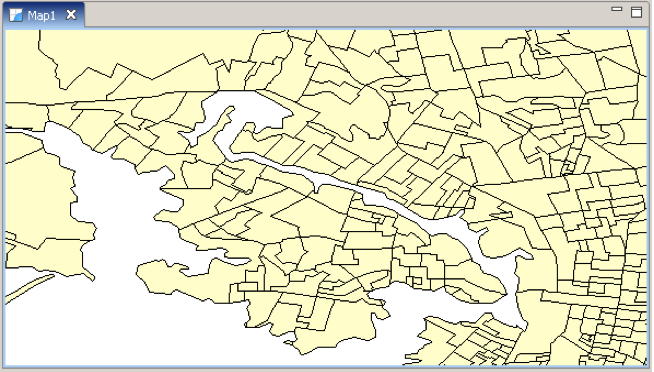
Although it is not a capability supported by Java, early programming languages made use of a prototype system (rather than a class system) that supported lots of “one off” Objects. You will find this situation is fairly common when making maps – since how many Eiffel towers are there? You will also occasionally find the same real world thing represented a couple of different ways (the Eiffel tower can be a landmark or a tower depending on context).
Here is a handy cheat sheet:
Java
Geospatial
Object
Feature
Class
FeatureType
Field
Attribute
Method
Operation
The Feature model is actually a little bit more crazy than us Java programmers are used to since
it considers both attribute and operation to be “properties” of a Feature. Perhaps when Java
gets closures we may be able to catch up.
The really interesting thing for me is that map makers were sorting out all this stuff back in the 1400s and got every bit as geeky as programmers do now. So although we would love to teach them about object oriented programming they already have a rich set of ideas to describe the world. On the bright side, map makers are starting to use UML diagrams.
FeatureClass
In GeoTools we have an interface for Feature, FeatureType and Attribute provided by the GeoAPI
project. In general GeoAPI provides a very strict interface and GeoTools will provide a class.
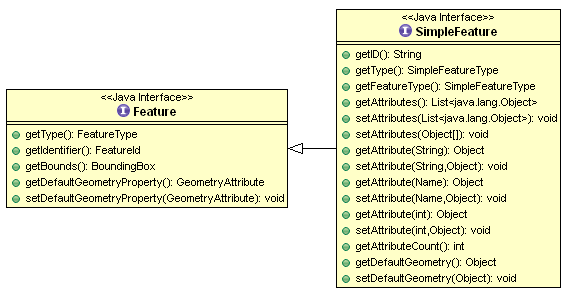
It is very common for a Feature to have only simple Attributes (String, Integer, Date and so on)
rather than references to other Features, or data structures such as List<Date>. Features that
meet this requirement are so common we have broken out a sub-class to represent them called
SimpleFeature.
At the Java level the Feature API provided by GeoTools is similar to how java.util.Map is used – it is a Java data structure used to hold information. You can look up attribute values by key; and
the list of keys is provided by the FeatureType.
Geometry
The other difference between an Object and a Feature is that a Feature has some form of location
information (if not we would not be able to draw it on a map). The location information is going
to be captured by a Geometry (or shape) that is stored in an attribute.
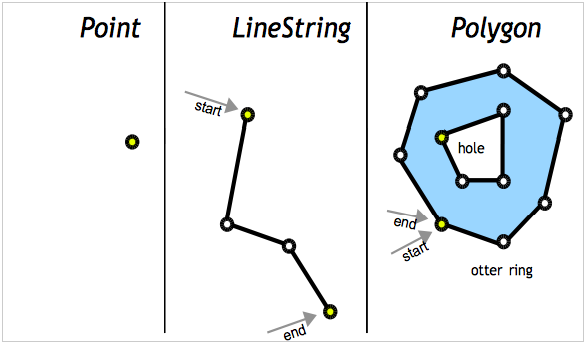
We make use of the JTS Topology Suite (JTS) to represent Geometry. The JTS library provides an
excellent implementation of Geometry – and gets geeky points for having a recursive acronym! JTS
is an amazing library and does all the hard graph theory to let you work with geometry in a
productive fashion.
Here is an example of creating a Point using the Well-Known-Text (WKT) format.
GeometryFactory geometryFactory = JTSFactoryFinder.getGeometryFactory( null );

WKTReader reader = new WKTReader( geometryFactory );
Point point = (Point) reader.read("POINT (1 1)");
You can also create a Point by hand using the GeometryFactory directly.
GeometryFactory geometryFactory = JTSFactoryFinder.getGeometryFactory( null );

Coordinate coord = new Coordinate( 1, 1 );
Point point = geometryFactory.createPoint( coord );
DataStore
We ran into DataStore already in our Quickstart. The DataStore API is used to represent a File,
Database or Service that has spatial data in it. The API has a couple of moving parts as shown
below.
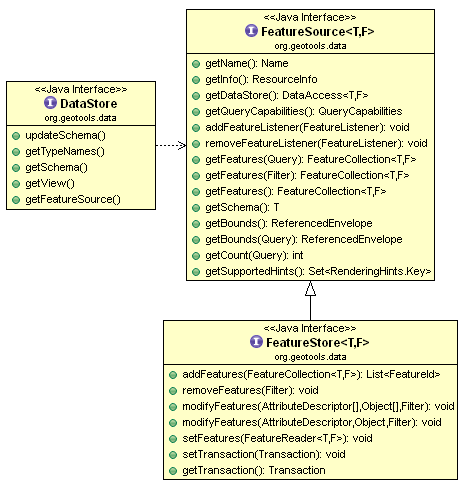
The FeatureSource is used to read features, the sub-class FeatureStore is used for read/write access.
The way to tell if a File can be written to in GeoTools is to use an instanceof check.
String typeNames = dataStore.getTypeNames()[0];
SimpleFeatureSource source = store.getfeatureSource( typeName );
if( source instanceof SimpleFeatureStore){
   SimpleFeatureStore store = (SimpleFeatureStore) source; // write access!
   store.addFeatures( featureCollection );
   store.removeFeatures( filter ); // filter is like SQL WHERE
   store.modifyFeature( attribute, value, filter );
}
We decided to handle write access as a sub-class (rather than an isWritable method) in order to keep
methods out of the way unless they could be used.